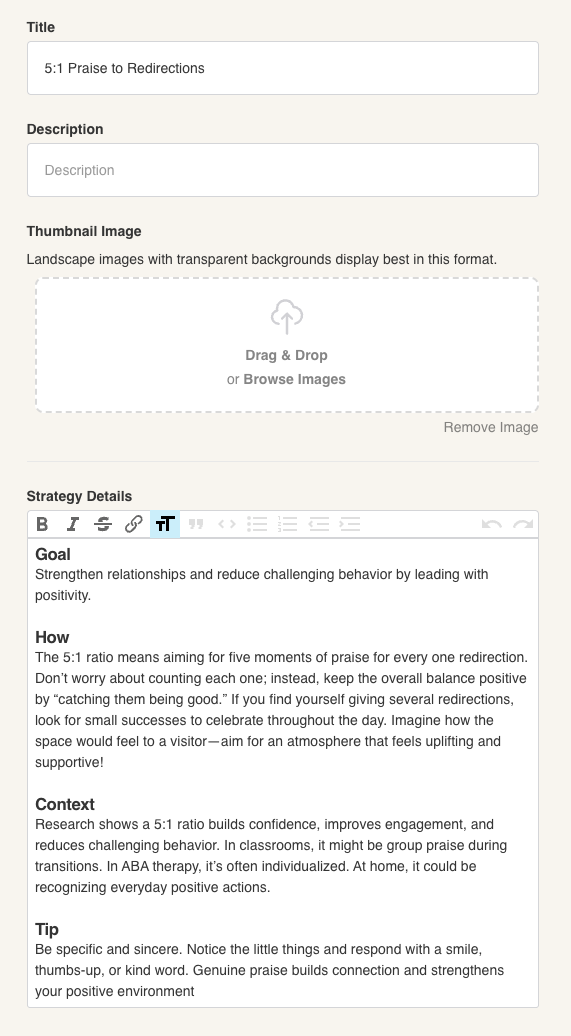
Every strategy has a side panel — the column on the left of the strategy editor that shows the strategy title, description, and implementation details (Goal, How, Context, Tip). This panel is fully editable and is what team members see when they read the strategy in Present Mode.
To edit the side panel:
Open the strategy in Edit Mode.
Click the Edit button (black) in the top-right corner of the side panel.
An editing form opens with the following fields:
Title — the strategy name as it appears on the card and in Your Strategies.
Description — a short subtitle or classification note (e.g., the program area).
Thumbnail Image — the preview image shown on the strategy tile in the library as well as the BIP.
Strategy Details — a rich text editor containing the Goal, How, Context, and Tip sections. Use the formatting toolbar (bold, italic, lists, etc.) to edit each section.
Make your changes, then click Save to apply them.