
Each step card in a strategy has a title (e.g., "Model communication") and a description text block below it. Both are editable, letting you tailor the exact wording to your learner, classroom, or team.
To edit the title and text of a step card:
Open the strategy in Edit Mode.
Click the Edit button (black) in the top-right corner of the step card you want to edit.
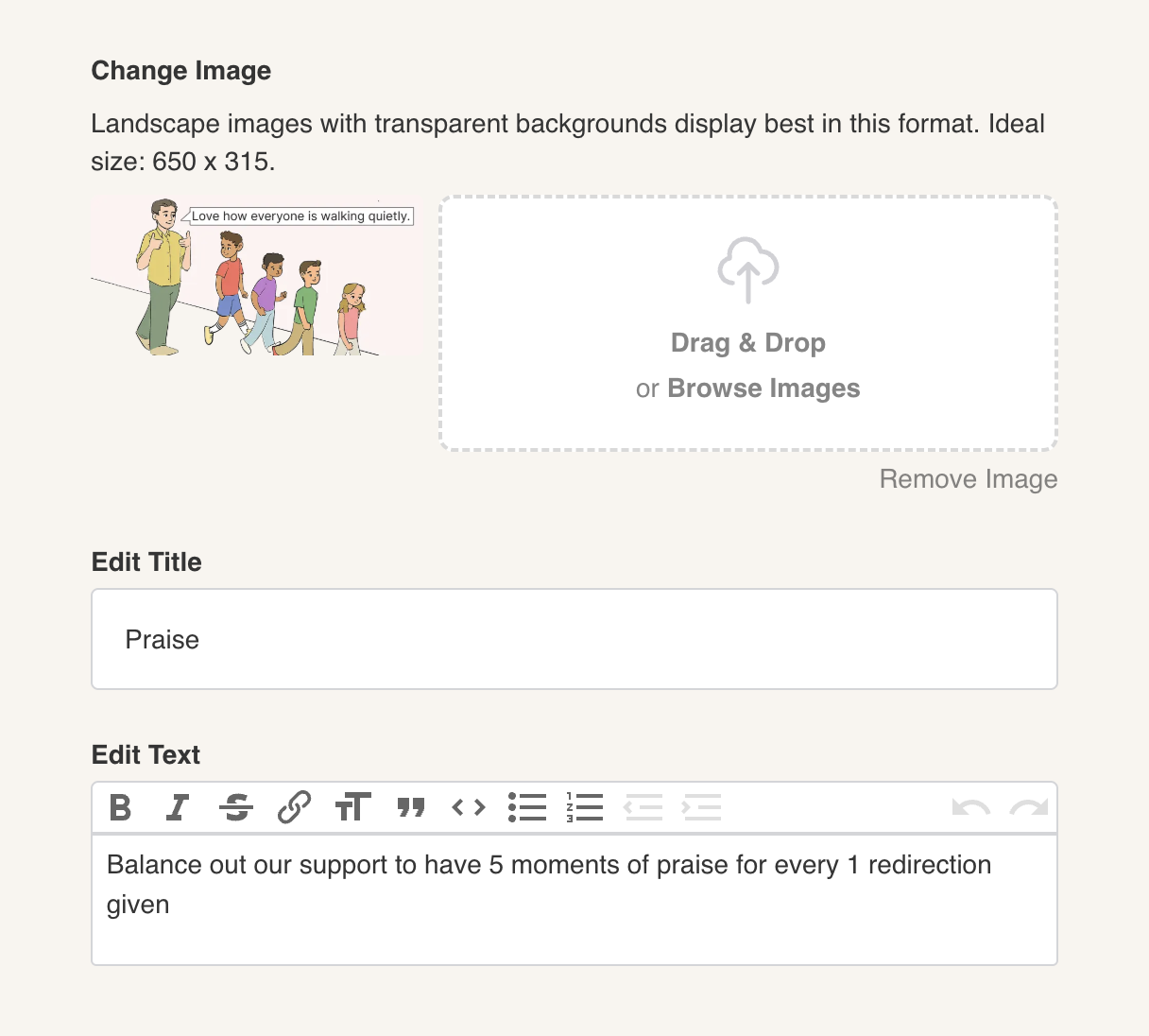
The card editor opens with three editable areas:
Change Image — swap or remove the step illustration (see Replace an image).
Edit Title — a single-line text field for the step name (e.g., "Redirection," "Praise," "Model communication").
Edit Text — a rich text editor for the step description, with a full formatting toolbar (bold, italic, bullet lists, numbered lists, links, undo/redo).
Make your edits, then click Save (top-right) to apply.
Common edits to make on step cards:
Replace generic pronouns with the learner's name (e.g., "the student" → "Marcus")
Name specific reinforcers ("earns a break" → "earns 5 minutes of Lego time")
Simplify language for families vs. clinical phrasing for staff
Add team-specific context or cues (e.g., "Wait 3 seconds before prompting")