
Your profile stores the basic information associated with your BIP Visualized account — your name, email address, time zone, and two-factor authentication preferences. Keep this up to date so notifications and receipts reach the right place.
To update your profile:
Click your name in the top-right corner to open the account menu.
Select Profile.
Update any of the following fields:
Full name — your display name across the platform.
Work email — the email address used for login and notifications.
Two Factor Method — choose SMS or Email for your two-factor authentication code (see below).
Mobile number — required if SMS two-factor is selected. Choose your country code from the dropdown, then enter your number.
Time zone — used to display dates and timestamps correctly throughout the app.
Click Update to save your changes.
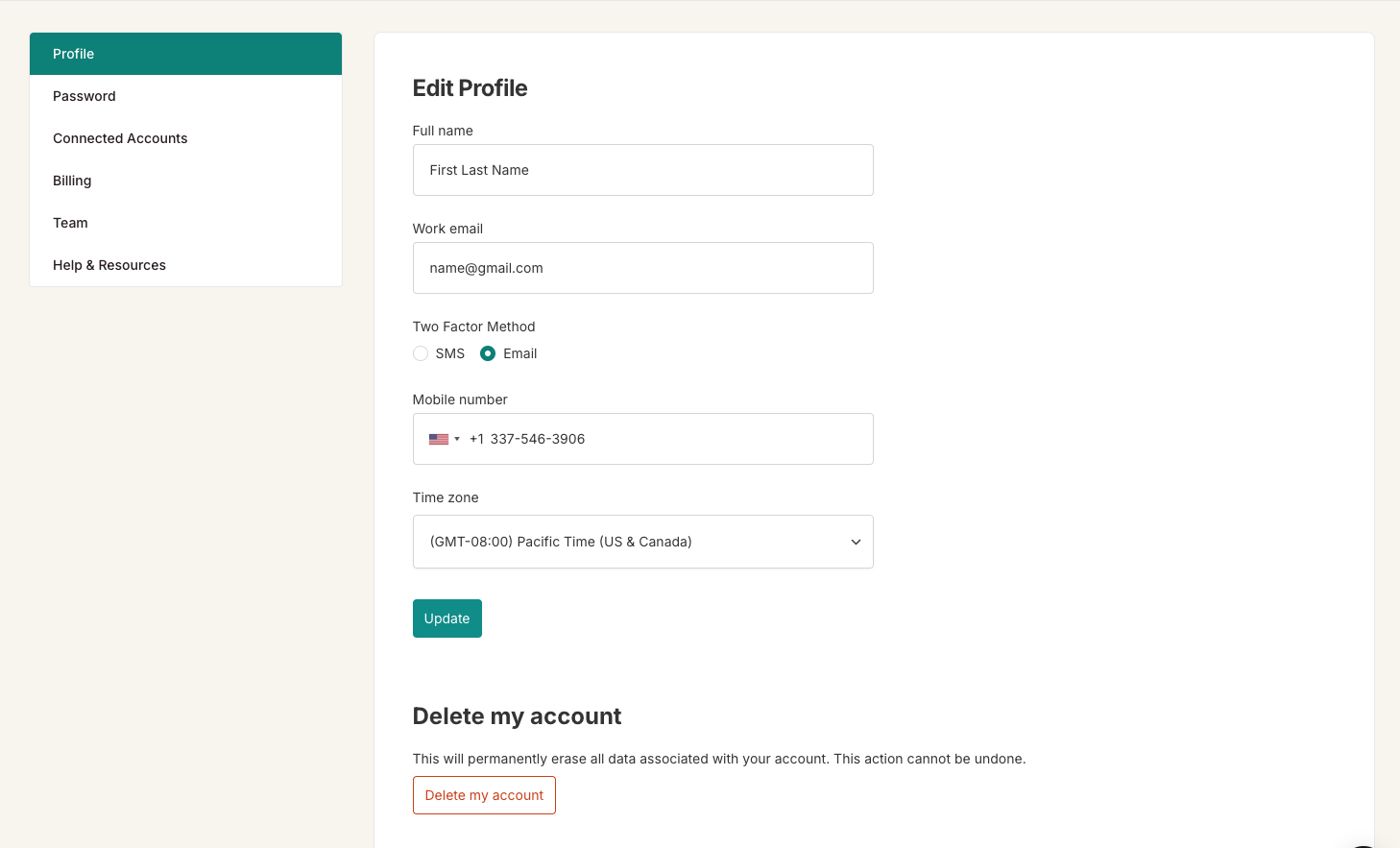
How to switch two-factor authentication to SMS
By default, BIP Visualized sends your two-factor authentication (2FA) code to your email address each time you log in. If you prefer to receive the code as a text message instead, you can switch to SMS at any time.
Go to your Profile settings (click your name → Profile).
Under Two Factor Method, select the SMS radio button.
In the Mobile number field that appears, select your country code from the dropdown and enter your mobile phone number.
Click Update to save. From your next login, your 2FA code will be sent by text message to that number instead of by email.
To switch back to email, select the Email radio button and click Update. No phone number is needed for email-based 2FA.
