
Every strategy step card includes an illustration. You can swap it for your own photo or graphic to better reflect your learner's environment, classroom, or cultural context. Images should ideally be landscape-format with a transparent background, at 650 × 315 px.
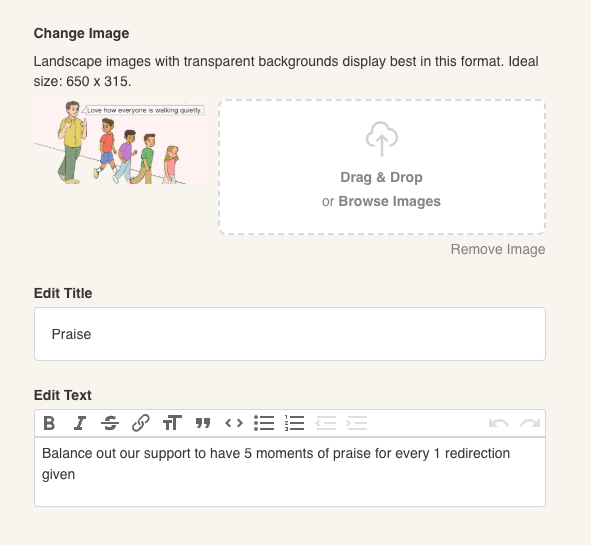
To replace a step card image:
Open the strategy in Edit Mode (see How to access a strategy above).
Click the Edit button (black) in the top-right corner of the step card whose image you want to change.
The card editor opens, showing a Change Image section at the top. The current image appears as a small thumbnail on the left.
Drag and drop your new image onto the upload area, or click Browse Images to select a file from your device.
To remove the image without replacing it, click the Remove Image link below the upload area.
Click Save (top-right of the editor) to apply your changes.
